
A maintenance calendar is what turns “we’ll fix it later” into work that actually gets done.
If you have ever opened a site and found a form that stopped sending, a plugin that quietly broke a layout, or a page that slipped out of search because no one checked it, you already know the pattern. The site usually does not fail in one loud moment. It drifts.
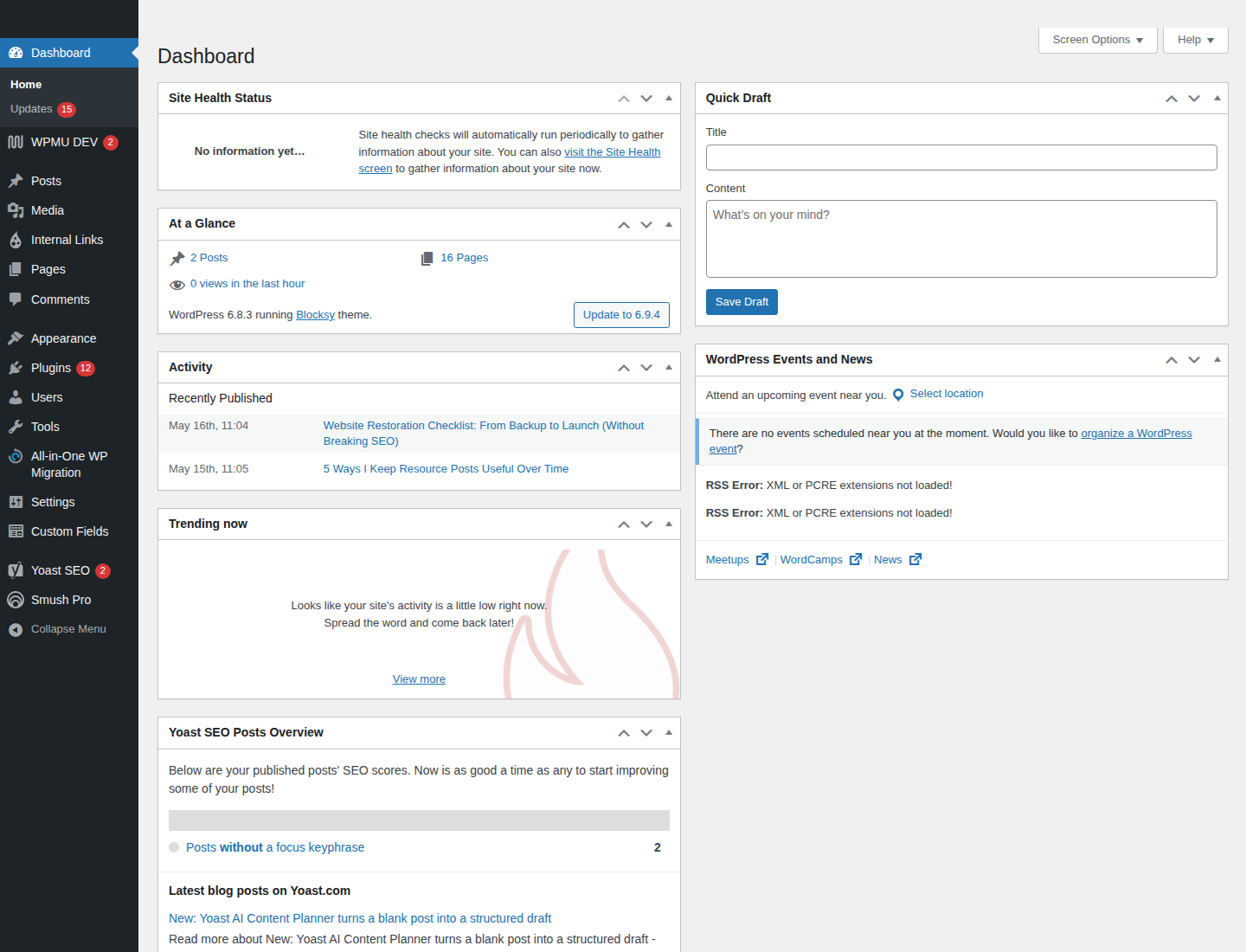
That is why I start with two built-in guardrails: the WordPress Site Health screen for platform-level warnings, and Google Search Console for crawl and index issues that a normal browser visit will never show you. A small monthly calendar gives those signals a place to land before they turn into a late-night scramble.
When people search for a guide like this, they are usually asking the same quiet questions: What should I check each week? Who owns the fix if something breaks? What counts as urgent versus scheduled? And how do I keep the whole thing simple enough that someone will still use it in month six?
As Peter Drucker is often quoted, “what gets measured gets managed.” For maintenance work, the cleaner version is even more practical: what gets scheduled gets seen.
In this article, I will show you how to choose a cadence, build a lightweight checklist, assign ownership, and keep a one-page maintenance calendar that your team can actually follow. If you want the public side of the site to feel steady, make sure the Home page is clear, keep a working Blog index for updates, and make the Contact page easy to find when a visitor needs a human next step.
Why a maintenance calendar matters after launch
A site update can look successful and still leave a trail of hidden issues. The home page loads. The nav works. Everyone relaxes. Then, a week later, a form submission disappears, a plugin update introduces a small layout shift, or a forgotten page continues to rank for a query you can no longer serve well. Those are the problems a maintenance calendar is meant to catch.
The calendar does three useful things at once:
- It gives recurring checks a date, so they do not depend on memory.
- It gives ownership a name, so no one assumes “someone else” handled it.
- It gives the team a simple response rule, so urgent issues are not treated like routine housekeeping.
I like that last point because it keeps maintenance calm. Not every issue should trigger a page-wide panic. Some items need same-day attention. Others can wait for the next scheduled cycle. A good calendar makes that difference visible.
For the technical side, official documentation is useful because it keeps the work grounded in things the platform and search engines actually expose. WordPress Site Health is built to surface common configuration and performance warnings, while Search Console shows indexing and crawl problems at the search layer. Those are exactly the sort of “silent failures” a maintenance rhythm should catch early.
Terms to know before you build the calendar
People often overcomplicate maintenance because the vocabulary sounds more technical than the work really is. Here is the short version.
- Indexability
- Whether search engines can crawl and store a page in their index.
- Uptime
- Whether the site is available when visitors try to open it.
- Form submission
- Any message, lead, signup, or contact request sent through a site form.
- Site Health
- WordPress’s built-in screen for common technical checks and warnings.
- Backup verification
- A quick test that confirms your backup actually exists and can be restored.
- Escalation
- The rule for when a routine issue becomes urgent and needs faster action.
Once you use these terms in a simple way, the calendar gets easier to discuss with a client, a teammate, or your own future self. That matters because maintenance work fails most often when the instructions are vague.
Choose your cadence: weekly, monthly, quarterly
The best maintenance calendar is not the busiest one. It is the one with a rhythm that matches the site’s risk level. A small brochure site does not need the same cadence as a busy lead generation site or an e-commerce store. Start with a basic pattern and only add tasks when the site earns them.
| Cadence | What to check | Why it belongs here |
|---|---|---|
| Weekly | Form tests, uptime alerts, obvious broken links, new comments or spam, security notices | Catches fast-moving problems before visitors notice them for long |
| Monthly | Indexability, top pages, page speed spot-check, plugin and theme review, analytics trends, backup verification | Useful for the recurring checks that matter but do not need daily attention |
| Quarterly | Content freshness review, navigation review, permission audit, accessibility spot-check, archived pages or outdated links | Best for slower changes that still affect trust and usability over time |
If you are not sure where to begin, start with monthly. One solid monthly cycle is better than an ambitious weekly plan that never gets completed. I would rather see six repeatable checks done well than twelve checks no one remembers by the second month.
Maintenance categories that actually prevent problems
A calendar is useful only if the tasks inside it map to real failure points. I group maintenance into five categories because they cover most of the issues that come back again and again.
SEO basics
This is not about chasing every ranking wiggle. It is about checking whether the pages you care about are still available, still indexable, and still linked in the right places. Your monthly SEO maintenance should include top-page checks, title and meta consistency, canonical sanity, and a quick review of Search Console messages.
When I review SEO maintenance, I look for the things that can quietly damage visibility: accidental noindex tags, broken internal links, duplicate page variants, missing redirects, and pages that are suddenly too thin to answer the original question well. Search performance usually starts with plain, useful page structure.
Content
Content maintenance is partly editorial and partly practical. Check whether service descriptions are current, whether dates still make sense, whether old calls to action match the current offer, and whether any pages have become cluttered with stale side notes or repeated phrasing. If a page no longer helps a real visitor, it belongs on the calendar.
This is also where internal links matter. A good maintenance cycle keeps the About page aligned with the site’s current identity, and it keeps the Blog index from becoming a dead end. If a page exists, it should still earn its place.
Forms and user experience
Forms are one of the easiest things to forget and one of the easiest things to break. Test the main contact form, newsletter signup, search box, quote request, or any other conversion path that matters. Do not just look at the button. Submit the form. Confirm the message arrives where it should. Read the confirmation text. If there is a validation message, make sure it is understandable on mobile as well as desktop.
For a site owner, a failed form is not a technical error. It is a lost conversation. That is why I give forms their own line item in the calendar instead of tucking them under “miscellaneous.”
Performance
Performance maintenance does not mean you need to chase perfect scores every month. It means you should spot-check the pages that matter most and confirm they still load at a reasonable speed. Look for oversized images, script bloat, caching problems, or plugin changes that slow down the experience. A quick pass through PageSpeed Insights is often enough to spot an issue worth investigating further.
If a page feels slow, the question is not only “what number did it get?” but “what changed?” That is where a calendar helps, because it gives you a dated trail of recent updates, images, plugins, and content changes.
Security and backups
Security checks should stay simple. Review plugin and theme updates, confirm that backups are running, and verify that you can still reach the backup storage location. A backup that exists only in theory is not a backup. The WordPress backups documentation is a good reminder that recovery matters as much as creation.
For many sites, the monthly backup check is the one that people skip because everything seems fine. That is exactly why it belongs on the calendar.
Analytics and reporting
Analytics tells you whether the site is behaving the way you expect. Look for sharp traffic drops, unusual bounce patterns, missing conversions, and pages that suddenly attract the wrong kind of attention. If you use Google Analytics, a monthly glance at traffic by page, source, and key conversion is enough to catch a lot of trouble before it becomes a mystery.
Analytics is also where you notice slow pain. A form may still work, but conversion rates can slip. A page may still be live, but users may bounce because the content no longer answers the question they came with. That is useful information, not a vanity metric.
A ready-to-copy monthly checklist
Here is the version I would hand to a small site owner who wants a calm, repeatable process. Keep it short enough to finish in one sitting.
- Test the main contact form. Submit one real test message and confirm the delivery path works.
- Check top pages for broken links. Start with the home page, the main service page, and the most visited blog posts.
- Review Search Console. Look for coverage issues, indexing warnings, manual actions, or obvious crawl errors.
- Spot-check page speed. Run the home page and one key internal page through a speed test.
- Review plugin and theme updates. Note what changed this month and whether anything needs follow-up testing.
- Verify the latest backup. Confirm the backup exists and that the restore location is accessible.
- Scan analytics for anomalies. Look for sudden drops in visits, conversions, or engagement on important pages.
- Check the site’s public trust pages. Make sure the About, Contact, Privacy Policy, Terms of Use, and Cookie Policy pages are still accurate.
- Review image and media issues. Look for missing images, oversized files, or alt text that no longer describes the image well.
- Record one note for next month. Write down the issue you want to test again, even if it seems minor.
If the site is more complex, add one or two extra checks. Do not add five. The calendar should help you finish, not become another unfinished project.
Assign owners and response rules
The calendar only works when someone is clearly responsible for each item. If you are solo, that person is you. If you are working with a team, assign the task to the person most likely to notice the failure and most able to fix it without unnecessary handoffs.
| Task | Owner | Response rule |
|---|---|---|
| Form test submission | Site owner or editor | Urgent if submissions stop arriving; scheduled if only the message copy needs refinement |
| Broken link sweep | Content editor or admin | Urgent for top pages and conversion paths; scheduled for low-traffic archive pages |
| Plugin/theme review | Developer or technical owner | Urgent if a live issue appears after an update; scheduled if the version is simply out of date |
| Analytics review | Marketing or site owner | Urgent if conversions or tracking break; scheduled if the trend is stable but worth logging |
| Backup verification | Technical owner | Urgent if backups are missing or inaccessible |
The most useful rule I know is this: if the issue affects a visitor’s ability to contact you, buy from you, read something important, or trust the page, treat it as urgent. If it only affects internal neatness or slower improvement, schedule it.
That boundary protects the team from false emergencies. Not every broken footer link is a fire. Not every fire should wait for the next monthly meeting.
Lightweight tooling options
You do not need a complex dashboard to keep a site healthy. The right tools are the ones that produce a clear next step instead of another tab full of noise.
- WordPress Site Health for core technical warnings and basic system status.
- Search Console for crawl, index, and search visibility signals.
- Google Analytics for traffic and conversion trends.
- Uptime monitoring for availability alerts when the site cannot be reached.
- Backup verification for confirming you can restore what you are protecting.
If you want to keep the process human-sized, use a spreadsheet, a shared document, or a simple task board. The tool matters less than the habit: open it, check the same items, record what changed, assign the follow-up, and close the loop.
For team sites, this is also where a shared internal workflow can help. A maintenance calendar should not live in one person’s head. It should live somewhere other people can find it when the owner is out, busy, or simply not looking.
How to track outcomes without turning it into reporting theater
You do not need a giant dashboard to know whether the calendar is helping. A small set of metrics is enough.
- Number of broken links found and fixed.
- Number of form failures or missed submissions.
- Search Console crawl or index warnings.
- Pages with notable slowdown compared with last month.
- Backup verification pass or fail.
- Open maintenance items carried into the next cycle.
I also like one simple note field: “What surprised us this month?” That question keeps the calendar from becoming a checkbox exercise. If the same issue keeps coming back, the note should say so plainly. Recurrence is often the real signal.
If you track one thing over time, track trend rather than perfection. A site that gets better every month is easier to support than one that looks fine on paper and surprises everyone in practice.
One-page maintenance calendar template
Here is a simple monthly layout you can paste into Google Docs, Notion, or a spreadsheet. Keep the tasks short. Long task descriptions make people delay the work.
| Due date | Task | Owner | Status | Notes / next step |
|---|---|---|---|---|
| 1st Monday | Test primary forms | Site owner | Open | Record test email inbox and any error text |
| 1st Wednesday | Broken link sweep on top pages | Editor | Open | Start with Home, About, Contact, and top blog posts |
| 2nd Monday | Search Console review | Marketing | Open | Log crawl or index warnings that need action |
| 2nd Wednesday | Page speed spot-check | Technical owner | Open | Test one high-traffic page and one conversion page |
| 3rd Monday | Plugin, theme, and backup review | Developer | Open | Note version changes and restore status |
| Last Friday | Monthly summary | Site owner | Open | Capture what changed, what failed, and what to check next month |
If you want the calendar to stick, pair it with one visible reminder. A recurring task, a shared document link, or a calendar invite is usually enough. The simpler the reminder, the less likely it is to be ignored.
FAQ
How many hours per month is reasonable?
For a small WordPress site, one to three hours is often enough for a basic maintenance calendar if the site is stable and the checklist is focused. A busier site with more forms, more plugins, or more frequent content updates will need more time. The key is not the exact hour count. The key is whether the work is small enough to finish consistently.
What should I do if I miss a cycle?
Do not restart the whole plan. Pick up the next important check, note what was skipped, and continue. If you miss more than one cycle, shorten the checklist before you add more discipline. Most missed cycles are a design problem, not a character flaw.
Do small sites really need a calendar?
Yes, just a smaller one. Small sites still have forms, plugins, passwords, backups, content updates, and search visibility to protect. The lighter the site, the more valuable a simple calendar becomes, because it keeps maintenance from being treated as an emergency only when something breaks.
Should every issue be fixed immediately?
No. That is how teams burn out. Use your response rules. Fix anything that blocks visitors, breaks forms, harms trust, or affects indexability right away. Schedule the rest. A calm site is usually the one with clear priorities, not the one that tries to solve everything at once.
Conclusion
A simple website maintenance calendar does not need to be clever. It needs to be visible, specific, and realistic. Start with the recurring issues that matter most: forms, links, speed, updates, backups, and search signals. Give each item an owner. Decide what is urgent. Keep the checklist short enough that someone can finish it without heroics.
If you do that, maintenance stops feeling like a vague obligation and starts behaving like a normal operating habit. That is the real goal. Not perfection. Not endless monitoring. Just a site that keeps working because someone planned for the next month before the next problem arrived.
If you want to keep building the site around that same kind of clarity, the About page should tell people who is behind the work, the Contact page should make it easy to reach the right person, and the Blog should stay useful enough that readers can return for the next update without wondering where to start.
Key takeaways:
- Pick one cadence that you can actually maintain.
- Test forms, links, indexability, speed, backups, and analytics on a schedule.
- Assign owners and separate urgent issues from scheduled ones.
- Track outcomes with a few clear metrics, not a giant dashboard.
- Keep the calendar short enough that someone will use it next month too.