
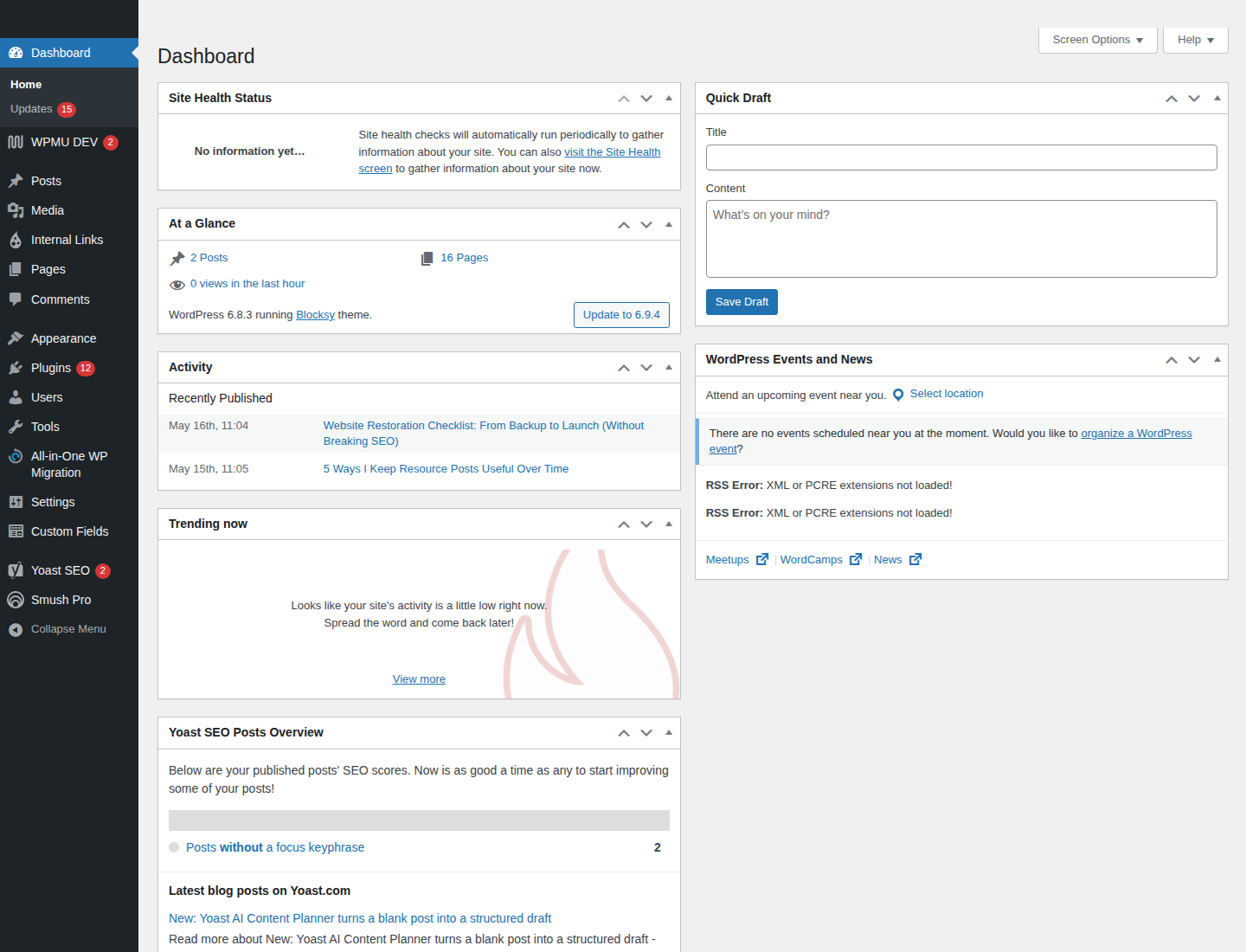
A WordPress site rarely stays healthy by accident. It stays healthy because someone checks the basics on a schedule, notices what changed, and fixes small problems before they spread. That is the practical value of a maintenance calendar: it turns a long checklist into a steady operating rhythm.
Google’s guidance on search quality keeps pointing in the same direction: make important resources accessible, avoid brittle shortcuts, and focus on durable improvements rather than quick fixes. WordPress says the same thing in its own language through Site Health. A maintenance calendar is the ordinary version of that advice.
For a site owner, the question is not whether maintenance matters. The question is how to keep it small enough that it actually happens.
Why a calendar works better than a one-time checklist
A checklist tells you what to do. A calendar tells you when to do it, who owns it, and how often it should return. That matters because sites change continuously: plugins update, content ages, links break, search behavior shifts, and accessibility gaps appear as templates grow.
A one-time cleanup can make a site feel neat for a week. A calendar helps it stay that way.
- Weekly tasks catch urgent issues before they turn into outages or content mistakes.
- Monthly tasks keep content, performance, and search visibility from drifting.
- Quarterly tasks handle deeper maintenance that is easy to ignore until it becomes expensive.
- Annual tasks are the slow audit layer: accessibility, navigation, backups, and policy review.
If you want a simple starting point, keep the home dashboard open in a tab and treat the blog index as the place where recurring work is documented. A calendar works best when it is visible, not buried.
The minimum weekly, monthly, quarterly, and annual tasks for WordPress
Weekly
- Run or verify backups. A backup is not a theory; it is the difference between a recoverable mistake and a long recovery weekend.
- Install safe updates. Update WordPress core, plugins, and themes after checking that the site still behaves normally.
- Check security alerts. Look for login issues, failed attempts, or plugin warnings.
- Confirm the site loads in a few key places. Home, a major content page, and one form or conversion path are usually enough for a quick health check.
Monthly
- Review top content. Confirm titles, links, calls to action, and metadata still reflect the page.
- Scan for broken links. A few bad links are easy to miss and easy to prevent.
- Look at performance and crawl signals. Slow pages and indexing issues tend to appear before a traffic drop becomes obvious.
- Check image alt text. Accessibility work is maintenance work, not a special project.
Quarterly
- Review plugins and themes with more care. Remove anything unused, outdated, or duplicated in purpose.
- Check database and media bloat. Large revisions, unused media, and old drafts can make maintenance harder.
- Test restore procedures. A backup only counts if you know how to restore it.
- Review key pages for drift. Pages that once matched the business can quietly fall behind.
Annual
- Run a full site audit. Include content, accessibility, navigation, forms, analytics, and security settings.
- Review roles and permissions. People change roles; access should change with them.
- Refresh legal and policy pages. If your policies are stale, the site looks unfinished even when it is technically online.
- Revisit the site structure. A site grows. Good maintenance admits that growth and trims what no longer helps.
For security-related maintenance, WordPress’s security guidance is a good reference point. The details vary by setup, but the principle does not: keep access tight, patch regularly, and reduce avoidable risk.
How to assign ownership without losing accountability
Maintenance fails most often when it belongs to everyone, which usually means no one. A better model is to assign responsibility by function.
| Task area | Typical owner | What they are responsible for |
|---|---|---|
| Content | Editor or page owner | Copy accuracy, links, calls to action, image alt text |
| Updates | Site administrator | Core, theme, and plugin updates after basic testing |
| Backups | Technical owner or host contact | Backup schedule, retention, and restore test |
| Security | Administrator | Login hygiene, permissions, suspicious activity review |
| QA | Second reviewer or content lead | Visual checks, form testing, mobile checks, broken-link review |
Ownership should be specific enough that a task has one clear person attached to it. That is not bureaucracy. It is how a site avoids the ritual of “someone should probably look at that.”
If you need a place to start assigning roles, the services page can describe support areas, while the contact page can give readers and collaborators a direct path to ask for help.
What to monitor in Site Health, Search Console, and uptime checks
WordPress Site Health is useful because it surfaces common configuration and performance concerns in one place. It will not solve everything, but it gives you a sane first pass at whether the site is broadly healthy. Use it as a starting signal, not as the final verdict.
Google Search Console adds a different lens: indexing, coverage, usability, and search performance. The goal is not to chase every fluctuation. The goal is to notice when pages stop being found, become hard to read on mobile, or show warnings that deserve review.
Uptime checks fill the gap between “the site exists” and “the site is reachable right now.” Even lightweight monitoring is useful here. A site can look fine to the owner and still be unavailable to visitors for long stretches.
For a plain-language refresher on the broader search side, Google’s technical SEO guidance is worth reading. It does not reward tricks. It rewards sites that remain accessible, clear, and consistently maintained.
Small-first fixes that prevent bigger restoration headaches
Most expensive site problems begin as small ones that were easy to ignore. That is the annoying part, and also the useful one: if you catch them early, they stay small.
Broken links
Broken links usually appear after content moves, pages are retired, or an external site changes its structure. Check them regularly and fix them directly rather than leaving a trail of dead ends.
Image alt text
Alt text is not a decorative extra. It supports accessibility and helps make image-heavy pages more useful when images fail to load or when assistive technologies are used.
Duplicate pages
Duplicate or near-duplicate pages can confuse visitors and make maintenance harder. If two pages serve the same purpose, decide which one is primary and simplify the other.
Stale navigation
Navigation that still points to old offers, outdated pages, or abandoned categories makes a site look less trustworthy. Review menus and footer links as often as the content they point to.
Open the WordPress dashboard when you need to check these details directly. The dashboard is not glamorous, but it is where most preventable problems are easiest to catch.
A simple calendar template you can copy
Use a spreadsheet, project tool, or shared document. The format matters less than the consistency. A simple template might look like this:
| Frequency | Task | Owner | Due date | Status | Notes |
|---|---|---|---|---|---|
| Weekly | Backups verified and recent updates reviewed | Site admin | Friday | Open / done | Record anything unusual |
| Monthly | Top pages checked for links, clarity, and performance | Content owner | First week | Open / done | List pages updated |
| Quarterly | Plugin, theme, and restore test review | Technical owner | Quarter end | Open / done | Note any conflicts or removals |
| Annual | Accessibility, navigation, and policy audit | Lead editor | Yearly review | Open / done | Capture changes for next year |
That structure is boring in the best way. It makes the work repeatable.
Common mistakes to avoid
- Over-maintaining. If every update becomes a mini-project, the calendar collapses under its own weight.
- Skipping backups because “nothing changed.” Sites change all the time, sometimes in the background.
- Letting updates pile up. Large update gaps are where compatibility problems like to hide.
- Turning accessibility into a one-time project. It is ongoing work, just like content and security.
- Keeping no record of what was checked. A calendar without notes becomes a memory test, which is a poor use of a website owner’s time.
The W3C’s accessibility planning guidance treats accessibility as something you plan, manage, and keep reviewing over time. That is the right frame here. Maintenance is not a rescue mission. It is part of the operating model.
A practical rhythm for a healthy WordPress site
If you want the shortest useful version of this article, it is this: choose a frequency, assign an owner, write the task down, and review the result. Then repeat.
A WordPress site does not need dramatic attention every day. It needs consistent attention on a schedule that is realistic enough to survive a busy month. That is what the calendar is for.
If you are setting up the routine now, start with one weekly check, one monthly review, and one quarterly deeper pass. Keep the process visible, keep the responsibilities clear, and use the calendar to prevent the next cleanup problem instead of reacting to the last one.
For readers who want to explore the rest of the site, the home page is the best place to begin, and the blog will collect related guidance as it is published.